Friday, 26 November 2010

Fix The 'Cannot Find A Feed' Problem On Blogger

This is a quick post that I'm sure any of you that have experienced problems with Finding a feed from their blogs URL will appreciate.In fact even if you have not come across this problem you might want to follow the steps to make sure your Blogs feed can be easily found.OK so the problem I'm referring to occurs when you enter your Blogs URL (Home Page Address) somewhere and they try to fetch your Feed but return unsuccessful.Examples would be when you submit to Blog Directories, Add your blog to a Blog Roll or comment on Blogs with Comment Luv.In all these cases they try to find the feed to list one or more of your recent posts but the feed cannot be found.

This is a problem a number of Blogger users seem to be having and it can be easily fixed.Below i will show you a snippet of code you can add to the head of your template that can be found instantly.Sounds good so lets do it.

Add Default Feed Link To Your Blogs Template


Step 1. In your Blogger dashboard click > 'Design' > 'Edit Html'


Step 2. Find the following piece of code in your blogs Html (It's Near The Top):

<head>

Step 3. Copy and paste the following code Directly Below / Under <head>

<link href='YOUR-BLOGS-FEED-URL' rel='alternate' title='YOUR BLOGS TITLE' type='application/rss+xml'/>

Note - You must make the following changes :

Replace YOUR-BLOGS-FEED-URL with your blogs feed address, If you have a Feedburner URL use that otherwise use the default feed(Drop a comment below if your unsure of your blogs feed URL).

Replace YOUR BLOGS TITLE with the title of your blog, for example i would add Spice Up Your Blog.

Step 4. OK Save Your Template, you have added a feed link to your template that can be quickly found and returned by any Programme, Bot, Spider or Aliens from Jupiter.Make sure to check out more of our Posts with Tips To Help With Your Rss Feed.

Drop Your Comments, views and Questions Below.

Wednesday, 24 November 2010

How To Fight Off Blogger's Block


Guest Post By : Alvia Lopez

Blogger's block is a phenomenon much like writer's block, but it can apply not only to the actual writing of the content, but also to the overall maintenance of the blog and the goals the blogger has for the blog's future. Blogger's block can strike anyone, even the most seasoned blogger, at any time, and it can last for as little as a few minutes to several months, depending on the character of the blogger in question. Blogger's block is one of the main reasons as to why new bloggers give up on their blog within a few months of starting it.

So, if we can accept that blogger's block can happen to the best of us, then we should focus not necessarily on only preventing it, but on dealing with it when it does strike. The idea here is to minimize the damage blogger's block can cause us. Here are a few tips to working past bloggers block and preventing it from happening often.


Check Your Vision


To minimize blogger's block, you should make sure you have a solid vision for your blog. Reexamine your goals. What kind of future do you anticipate for you blog? What will your blog look like in five years? What reasons do you have for blogging and how can you reach your blogging goals? If you are clear as to the origins of your blog and what you'd like to do with it, then you'll have fewer chances of blogger's block. Blogger's block strikes those who often can't decide why they blog. If you have a good reason for yourself, then you'll be better off.

Stay In Your Niche


Blogger's block also affects those bloggers who don't blog in a niche, or blogging subject and community, that suits them best. For example, if you like gadgets but are not very technologically knowledgeable, then starting a blog about trends in gadgets might not be the best idea. But, what you could do is write about gadgets from the perspective of a person who is not computer-savvy. That personal spin could help you find a unique place in that niche, thus helping you focus all your posts and avoid getting blocked.

Who Is Your Audience?


Another way to treat blogger's block is to always write for an audience. Always think about whom you're writing for. Try to imagine how they'll react. Try to think of what might be interesting to them and how you can put your personal spin on it. If you write only for yourself, then you might not have trouble thinking of good content, but you'll be blocked when it comes to worrying about why your traffic numbers are so low.

Check Out More Of Our Writing Tips Or Why Not Write A Guest Post For Spice Up Your Blog.

Tuesday, 23 November 2010

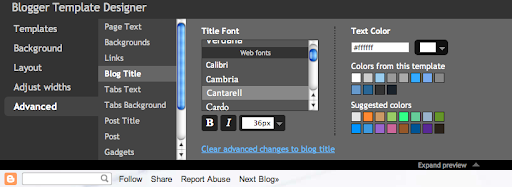
40 New Awesome Fonts In Bogger Template Designer

What better way to Spice Up Your Blog than using some cool custom fonts.From today using a selection of stylish fonts on your blogs Titles, Posts and other sections has become much easier.Recently Google launched The Google Fonts Directory and now Blogger have imported all the great fonts into the Template Designer.For now this great Blogger Update is only available via Blogger In Draft and usually it takes a week or two to progress to the main Blogger site.

Update - This feature has been added to the main Blogger site with 35 new fonts.Get the details here - Over 70 Fonts For Blogger.

The fonts available include hand writing and logo styles so they can give your blog a more professional look.In fact for the last 6 months i have been using the Lobster font for the blog title and philosopher font for post titles on Spice Up Your Blog, both are now available via the template designer.I also quickly added a few of the new fonts to This Test Blog if you want to check it out.

How To Use New Custom Fonts On Blogger

1. First you need to log in to your bloger dashboard via Blogger In Draft : Blogger In Draft

2. In your Dashboard click the Template designer link in the top menu.

3. Choose the 'Advanced' option when in the template designer.

4. You can now see a new selection of fonts for your blogs Page Text, Post Title, Blog Title and Gadget Titles.


Note - Some of the custom Blogger templates will have added the fonts directly to the template and you may not be able to change them via template designer.You can however add them manually from the Google font directory.Make sure to check out more of our Blogger Design Tips.

Drop Your Comments, Views And Questions Below.

Monday, 22 November 2010

Create And Add A Second Google Friend Connect Followers Gadget To Blogger

This is another post that answers a question i was asked by a reader, however this time it was a reader of Best Blogger Templates.On Best Blogger Templates i have a Followers Gadget in the sidebar and a second in the Footer section and a reader wanted to know how i added the second Followers gadget.Many people especially Blogger users like to use the Followers option to keep up to date with their favorite blogs.When you Follow a blog you can see all the updates directly from your Blogger dashboard.So it makes sense to make it as easy as possible for readers on your blog to become followers.To do this most Blogger blogs add the Followers gadget to their sidebar via the 'Add A Gadget' menu in their blogs design page.This is a very easy option but for some reason you are limited to only one followers gadget on your blog and the customize options are very limited.

But the Followers gadget you add via 'Add A Gadget' is just one option, did you know you can create and style a custom Followers gadget and add more than one gadget to your blog ?.The followers gadget you use on Blogger is actually a 'Google Friend Connect' gadget that has been slightly altered for Blogger.In this Blogger Tip i will show you how you can create more Followers Gadgets and fully customize the appearance.By adding a second Followers Gadget to for example your blogs footer you will see an increase in Followers.I will also show you how to add your second Followers gadget in different areas such as below all your blogs posts.The new Followers gadget will have your current Followers displayed and work in the very same way.

Also check out how to use a Standalone Follow Button For Followers Instead Of The Full Gadget.

Create And Customize Second Followers Gadget


Step 1. First follow this link to the Google Friend Connect  Home Page.

Step 2. If you are not logged into your Google account log in.

Step 3. In the left sidebar you will see a list of your blogs choose the Blog you want the Followers gadget for.

Step 4. You will now see a number of options connected to Google Friend Connect, Click 'Add The Members Gadget'.


Step 5. You are now ready to style your Followers gadget.

Gadget Size

Width - If you intend to use the gadget in your sidebar or footer leave the width as it is.If you want to add the Followers gadget below your posts change it depending on your blogs width, 400 for narrow posting area, 500 for average posting area, 600 for wide posting area (On Spice Up Your Blog i would choose 600).

Rows Of Faces - The rows of face will determine the height of the gadget.

Gadget Style

Choose Colors - You can use any colors to style the Followers gadget and have it blend with your Blogs Template.The easiest way to blend the gadget is by setting all the backgrounds and borders to Transparent.To do this leave the hex color section empty (The hex section is the six numbers that define the color).


Generate Code - Once you are happy with your Followers gadget design scroll down and click Generate Code.

Add Your Second Followers Gadget To Your Blog


Add To Sidebar Or Other Gadget Sections.

Step 1. In your Blogger dashboard click Design > Add A Gadget > Choose Html/Javascript from the pop up menu.


Step 2. Paste the code for your Followers gadget into the Html/Javascript Gadget and save.You can now return to the Design page of your blog and Drag and Drop the gadget into position.

Add Followers Gadget Below All Posts

Step 1. In your Blogger Dashboard click Design > Edit Html > Expand Widget Templates


Step 2. Find the following piece of code in your blogs Html : (Click Ctrl and F for a search bar to help find the code - More Info)

<data:post.body/>

Step 3. Paste the code for your Followers Gadget directly Below / Under <data:post.body/>

Step 4. Save your template.

That's it check out your second followers gadget.If you have more than one Blog you could place Followers options for each blog on the other blog.Check out more of our Awesome Blog Gadgets and Design Tips.

Drop Your Comments, Views And Questions Blelow.

Friday, 19 November 2010

Exclusive Sharing Is Caring Social Bookmark Gadget For Blogger

It's day five and the final day of our Sexy Bookmarks week on Spice Up Your Blog.This week in connection with the launch of Social Icon Studio we are publishing 5 unique social bookmarking gadgets.Each gadget uses a different set of social icons and a different arrow message from the sexy bookmarks collection.

Today's bookmarking gadget is all about hearts with the Heart shaped social icons and the Sharing Is Caring arrow message with hearts.We will add the gadget below all your posts where it will grab the attention of your readers and get them sharing your posts on their favorite social networks.So lets look at the gadgets we have published so far and the demo of the Sharing Is Caring gadget.

- Sharing Is Caring Social Bookmarks
- Share The Love Social Bookmarks
- Sharing Is Sexy Social Bookmarks
- Share The Wealth Social Bookmarks
- Share The Knowledge Social Bookmarks

The Original :
- Wordpress Style Share The Love Bookmarks

Live Demo - Click To See The Demo : Sharing Is Caring Bookmark Gadget

Add The Sharing Is Caring Bookmark Gadget To Your Blog


Step 1. In Your (New Design) Blogger Dashboard Click The Drop Down Menu For Your Blog > Choose Template > Then Edit Html > Now Proceed > Tick The Expand Widget Templates Box as shown in the video Below :

Step 2. Find the following piece of code in your blogs Html : (Click Ctrl and F for a search bar to help find the code - More Info)

<data:post.body/>

Step 3. Copy And Paste The Following Code Directly Below / Under <data:post.body/>

Scroll Box - Be Sure To Get All The Code.
<b:if cond='data:blog.pageType == &quot;item&quot;'>
<!--Start Sharing Is Caring Bookmarks http://www.spiceupyourblog.com-->
<a href='http://www.spiceupyourblog.com'><img alt='Best Blogger Tips' src='https://blogger.googleusercontent.com/img/b/R29vZ2xl/AVvXsEgaYqm6xBxp5E1rd4O1aT12fj-dLN-q80OAJ6XqEuhA3xy8Z9sq5bB5SLPNsaP6BSHYZWCHG3fizpfJbCqFftz-1evmQcUCbupu_I-TekVKuOM7HEggqFjkT97zU6gkD78Cm0OcDAJuLX6K/s1600/best+blogger+tips.png'/></a><style>
img{border:0;}
#wrapper{width:488px; height:110px; background-image:url(https://blogger.googleusercontent.com/img/b/R29vZ2xl/AVvXsEjXEKZAv2cNPrj02MWJkZoi1Jn-No_s7sY-CBo_QceLos22ZyrwLVrZcA1baZKXunsSONe0rBWpmMCupwfcJm9YrPO_0LPOzHniORLbr8DFhVN0oFn3NUQGqBX_LtXGMgYJ6QBG5s3SbEA/s1600/sharing+is+caring+hearts.jpg); position:relative; background-repeat:no-repeat; background-color:transparent;}
#wrapper ul{position:absolute; width:600px; top:42px; left:3px; list-style-type:none;}
#wrapper li{float:left;}
</style>

<div id='wrapper'>
<ul>
<li>
<!-- Facebook -->

<a expr:href='&quot;http://www.facebook.com/share.php?u=&quot; + data:post.url + &quot;&amp;title=&quot; + data:post.title' rel='nofollow' target='_blank'><img alt='Share On Facebook' height='48' src='https://blogger.googleusercontent.com/img/b/R29vZ2xl/AVvXsEhPVwWQzfB7JYEkhW3G2y2FKCf_cjXBkFk3uESYhB5Bq140PWso5bCOSkbG80TsJkTDWrPUFGJXVQmUwUXRkWUjinjEKhzzVnlCE195En8HGmuILCSfkTFb4fxNALdrnJF31nJFJQluT_4/s1600/facebook.png' width='48'/></a>
</li>
<li>
<!-- Digg -->

<a expr:href='&quot;http://digg.com/submit?url=&quot; + data:post.url + &quot;&amp;title=&quot; + data:post.title' rel='nofollow' target='_blank'><img alt='Digg This Post' height='48' src='https://blogger.googleusercontent.com/img/b/R29vZ2xl/AVvXsEgbHTLMpP2DzocSQbLwUXyJirzwQCm_PuYnv3oXe40jwKbPa-pgGUn8_VzkMy23W3OBlSYpiRbNpBIqfvc2NuvBc3T1R7vQWKeW2p6K_Sa-yBAwt6Dt4-H99xon_gTo5uZ97q1fgNv8iw8/s1600/digg.png' width='48'/></a>
</li>
<li>

<!-- Stumbleupon -->

<a expr:href='&quot;http://www.stumbleupon.com/submit?url=&quot; + data:post.url + &quot;&amp;title=&quot; + data:post.title' rel='nofollow' target='_blank'><img alt='Stumble This Post' height='48' src='https://blogger.googleusercontent.com/img/b/R29vZ2xl/AVvXsEjsERg1xERT2yTBjpcN6-zBistghpUBkwRccVofUoXibMLO7pExi7m5dwh-4p8OBypMtZSfv26gfq_otOwESShcwf7rUEDfRvHZJLHsuZlZ905mnFKt_QHJ3LXTT2zZcsK0-Pb2-RfPNNI/s1600/stumble.png' width='48'/></a>
</li>

<li>
<!-- Twitthis -->

<a expr:href='&quot;http://twitthis.com/twit?url=&quot; + data:post.url' rel='nofollow' target='_blank'><img alt='Tweet This Post' height='48' src='https://blogger.googleusercontent.com/img/b/R29vZ2xl/AVvXsEjO66ajYeB_rQO5aDpNEr1d3V1I3WSJaQ5K-Sl7T6aIJqHoO9kr4pRrq7jSQI-KEGoUrgVhyY6Kz_uiredW_908VTPcItRS_NdZi4mmUAkP4RoKqf4OVzrlvqgggSZ1VP8B7rn5IPLh1o0/s1600/twitter.png' width='48'/></a>
</li>

<li>
<!-- Delicious -->

<a expr:href='&quot;http://del.icio.us/post?url=&quot; + data:post.url + &quot;&amp;title=&quot; + data:post.title' rel='nofollow' target='_blank'><img alt='Save Tis Post To Delicious' height='48' src='https://blogger.googleusercontent.com/img/b/R29vZ2xl/AVvXsEgk1y836sFv3Bn4aTUGKKIjSOSqqTq4JYt0lZKgR9-G_BKwQQa1ze1ElS6423z3lp2kTlngpgfILx7ytAngKZ6iwRNvBcCB9lYExxUPRdznigYmq5jlD-5GPPrSs-2rnPzzSWAeMfzQmDE/s1600/delicious.png' width='48'/></a>
</li><li>

<!-- Design Float -->

<a expr:href='&quot;http://www.designfloat.com/submit.php?url=&quot;+ data:post.url + &quot;&amp;title=&quot; + data:post.title' rel='nofollow' target='_blank'><img alt='Float This Post' height='48' src='https://blogger.googleusercontent.com/img/b/R29vZ2xl/AVvXsEjLkjCMC8jTWJfKL_oZaDitkWyWpSqXBJTcRhdWC6s8TLkgpUgntrjsNA4RH8sR-14T-MLM2cMfpN9Q2myIbZP_dHHKBQ0Q5HpZ2zUsBITgAWHTX91v179OmBjNunv_nIFMF2ZzbNN_pOI/s1600/designfloat.png' width='48'/></a>
</li><li>
<!-- Reddit -->

<a expr:href='&quot;http://www.reddit.com/submit?url=&quot; + data:post.url + &quot;&amp;title=&quot; + data:post.title' rel='nofollow' target='_blank'><img alt='Share On Reddit' height='48' src='https://blogger.googleusercontent.com/img/b/R29vZ2xl/AVvXsEhQaa7ttzYq_pBkQ3bDOQ7FMZNXAXiC_qSOhPjG_9Yaq-UcGoTfaLTaMYQ1vbk0Clq9kwZ6TJ7bYDJaNXbFnySb2Lt9y7KGA7xwgl2l7o5luOuaWMTZh-1RXe7mZdHpflEF3agHtMvh70g/s1600/reddit.png' width='48'/></a>
</li><li>
<!-- Technorati -->

<a expr:href='&quot;http://technorati.com/faves?add=&quot; + data:post.url' rel='nofollow' target='_blank'><img alt='Bookmark On Technorati' height='48' src='https://blogger.googleusercontent.com/img/b/R29vZ2xl/AVvXsEhkcnY1aYCVDh5pvbcNtkTKFs1TBIm5A_jITX5Xl09zTcVhB0Wl1IqcYxJsyGcqfdtWnu0JJgcZ_5BkcMcW7DpQWXNf5wijk2MVwiGMIAB_sWhXuvFCJP9U3jjCM73baCziW6Gwra1MATg/s1600/technorati.png' width='48'/></a>
</li></ul></div><a href='http://www.spiceupyourblog.com' target='_blank'><font color='#ccc' size='small'>Blog Gadgets</font></a><br/>
<!--End Sharing Is Caring Bookmarks http://www.spiceupyourblog.com-->
</b:if>

Step 4. Save Your Template And Check Out Your New Sharing Is Caring Bookmark Gadget.

Remember SocialIconStudio.Com has lots more social icons you ca use with this or any Bookmark gadget.Make sure to check out more of our Social Media Posts.

Drop your comments, views and questions below.

Thursday, 18 November 2010

Exclusive Share The Love Social Bookmark Gadget For Blogger

sexy bookmarks blogger gadgetWe are into day four of our special Sexy Bookmarks week on Spice Up Your Blog.All this week we are publishing an Exclusive Social Bookmarking gadget using a unique set of social icons and an Arrow message from the Sexy Bookmarks Collection.All this weeks Bookmarks gadgets have been created by us and are exclusive to Spice Up Your Blog readers.This is in connection with the recent launch of Social Icon Studio a gallery of the best free social icons.Today we are using the Share The Love Arrow Message and the very Professional Lontar Social Icons.The gadget will be placed below all the posts on your blog and will grab the attention of your readers to get them sharing your Blog.So lets remind you of the Sexy Bookmarks we have published this week and see the live demo for this Share The Love Bookmark Gadget..

- Sharing Is Caring Social Bookmarks
- Share The Love Social Bookmarks
- Sharing Is Sexy Social Bookmarks
- Share The Wealth Social Bookmarks
- Share The Knowledge Social Bookmarks

The Original :
- Wordpress Style Share The Love Bookmarks

Live Demo - Click To See The Demo : Share The Love Bookmark Gadget

Add The Share The Love Bookmark Gadget To Your Blog


Step 1. In your Blogger dashboard click > Design > Edit Html > Tick The Expand Widget Templates Box.


Step 2. Find the following piece of code in your blogs Html : (Click Ctrl and F for a search bar to help find the code - More Info)

<data:post.body/>

Step 3. Copy And Paste The Following Code Directly Below / Under <data:post.body/>

Scroll Box - Be Sure To Get All The Code.
<b:if cond='data:blog.pageType == &quot;item&quot;'>
<!--Start Sharing Is Sexy Bookmark http://www.spiceupyourblog.com-->
<a href='http://www.spiceupyourblog.com'><img alt='Best Blogger Tips' src='https://blogger.googleusercontent.com/img/b/R29vZ2xl/AVvXsEgaYqm6xBxp5E1rd4O1aT12fj-dLN-q80OAJ6XqEuhA3xy8Z9sq5bB5SLPNsaP6BSHYZWCHG3fizpfJbCqFftz-1evmQcUCbupu_I-TekVKuOM7HEggqFjkT97zU6gkD78Cm0OcDAJuLX6K/s1600/best+blogger+tips.png'/></a><style>
img{border:0;}
#wrapper{width:488px; height:110px; background-image:url(https://blogger.googleusercontent.com/img/b/R29vZ2xl/AVvXsEjhmhkOcOMKc9JAYW-LqBPH_SHsdUyyhswA7mI6bQVE7oqLaS_W10Iu8Bn-0Cm4DKdhx8UmqH4BL8QOzzyH_EDVzQM9ckS5p0xTM5Daol_Z8q_288XACyw4JnRCP4cwePR_jrCFGmLz_kE/s1600/new+share+the+love+blogger+gadget.jpg); position:relative; background-repeat:no-repeat; background-color:transparent;}
#wrapper ul{position:absolute; width:600px; top:42px; left:3px; list-style-type:none;}
#wrapper li{float:left;}
</style>

<div id='wrapper'>
<ul>
<li>
<!-- Facebook -->

<a expr:href='&quot;http://www.facebook.com/share.php?u=&quot; + data:post.url + &quot;&amp;title=&quot; + data:post.title' rel='nofollow' target='_blank'><img alt='Share On Facebook' height='' src='https://blogger.googleusercontent.com/img/b/R29vZ2xl/AVvXsEhBvR6s2n9YUDH0qV30pyeumbsGvfi0fdai_DII8pTFzOjHWPOoQMl8UvGdAF9_ekA_wowpeMFEtPKGnu41B04pOx482DLJcEVP0Qb-XFxKHOjV616cfDes3yMJdd8qtGSU6eLN3tITV2A/s1600/facebook_48.png' width=''/></a>
</li>
<li>
<!-- Digg -->

<a expr:href='&quot;http://digg.com/submit?url=&quot; + data:post.url + &quot;&amp;title=&quot; + data:post.title' rel='nofollow' target='_blank'><img alt='Digg This Post' height='' src='https://blogger.googleusercontent.com/img/b/R29vZ2xl/AVvXsEiO5sWq-vDWmR5W-xPqLcMZvm_6a2tBsdxXYh__f5fKPdEuUioQ3xzzkBdRKIHpYBRRmx8E_mlemsQCYUgx2NFmCGDSzGz10An-Wk2aVXffAJ8mgEIkHfC7GIMwsGS27oaPGFtrnj8kwzs/s1600/digg_48.png' width=''/></a>
</li>
<li>

<!-- Stumbleupon -->

<a expr:href='&quot;http://www.stumbleupon.com/submit?url=&quot; + data:post.url + &quot;&amp;title=&quot; + data:post.title' rel='nofollow' target='_blank'><img alt='Stumble This Post' height='' src='https://blogger.googleusercontent.com/img/b/R29vZ2xl/AVvXsEi7yCFzdbspWhnsbQhgxaGDVVX8bqDHxgv_wZkV8NrtbNqRJ7rngTJ7iGtsmOXtyaKbzY2ZA5d_U5M1XNM7N8wnLBsLXhq4zDPpSx0D5x5gEjdP26HRXKMO68eJ-kLPyfg7Mi9BM4DrvdU/s1600/stumbleupon_48.png' width=''/></a>
</li>

<li>
<!-- Twitthis -->

<a expr:href='&quot;http://twitthis.com/twit?url=&quot; + data:post.url' rel='nofollow' target='_blank'><img alt='Tweet This Post' height='' src='https://blogger.googleusercontent.com/img/b/R29vZ2xl/AVvXsEg-pyz3J_AiKPdGfFV7io12rCIdgVthYZav8ERCB9fmOWNRrQ8bMNKM8faC1rSntbG5Si9Tmz4Ih-3OjJmSkeykfYKosjPEjc9jjk9ypeU45WQfOMd-NiljyxpSomM3sK_dMUGJXw8nihg/s1600/twitter_48.png' width=''/></a>
</li>

<li>
<!-- Delicious -->

<a expr:href='&quot;http://del.icio.us/post?url=&quot; + data:post.url + &quot;&amp;title=&quot; + data:post.title' rel='nofollow' target='_blank'><img alt='Save Tis Post To Delicious' height='' src='https://blogger.googleusercontent.com/img/b/R29vZ2xl/AVvXsEghFdI_N_iMddJnxleilu6bXyqTFYygiTfni1g6d8MFNHPwC-CPQUF2bvXweb4Z8-RiF7cSyRRHktifgyZ6fp-eZgrJl2hJ-8dvdqF1S5ATULS9Uof9jYc_I7sXrdk9F5Rhw78kRd4xGSc/s1600/delicious_48.png' width=''/></a>
</li><li>

<!-- Design Float -->

<a expr:href='&quot;http://www.designfloat.com/submit.php?url=&quot;+ data:post.url + &quot;&amp;title=&quot; + data:post.title' rel='nofollow' target='_blank'><img alt='Float This Post' height='' src='https://blogger.googleusercontent.com/img/b/R29vZ2xl/AVvXsEgZKfil6WW7-52k3qDzJNdDet3eLiMhSNFaGnXTfeflNAz3tjdBhlS7HFWPJNyHUBtGzaDz5KiuPeJi7ui_K6FtvqP2UY41rVAJGtNI_xOiPkvT8EeE1qDa6EPPDAAig_98_N4nqxsBdus/s1600/design_float.png' width=''/></a>
</li><li>
<!-- Reddit -->

<a expr:href='&quot;http://www.reddit.com/submit?url=&quot; + data:post.url + &quot;&amp;title=&quot; + data:post.title' rel='nofollow' target='_blank'><img alt='Share On Reddit' height='' src='https://blogger.googleusercontent.com/img/b/R29vZ2xl/AVvXsEgXFGja65DuBxDrLMbey8VgQK0mcEN84zon5PCBct6RkB_6QeED9NzPqMYAqp1-91LkSDhl0y3iVVvn-eH3yqiaEA9cpV_KbI5X1K-JiLtp7-sX-Tma8vRF_e3RnZ-JaEs8DCpb4UyH_Ys/s1600/reddit.png' width=''/></a>
</li><li>
<!-- Technorati -->

<a expr:href='&quot;http://technorati.com/faves?add=&quot; + data:post.url' rel='nofollow' target='_blank'><img alt='Bookmark On Technorati' height='' src='https://blogger.googleusercontent.com/img/b/R29vZ2xl/AVvXsEj8yDZ8WXf1aZyP_-C3jdGF_a4heQFV7jZsXb8xYVmwY8VQN1LVIU6zDSWh2G1as9qqMRg8ASHOKMg5lJvUPIdv_iLyYrppdEZ-QI-Ph5r0mBSqH_AQVuLswt9cAY20TjKGCZTVIB_SCZ0/s1600/technorati_48.png' width=''/></a>
</li></ul></div><a href='http://www.spiceupyourblog.com' target='_blank'><font color='#ccc' size='small'>Blog Bookmark Gadgets</font></a><br/>
<!--End Sharing Is Sexy Bookmark http://www.spiceupyourblog.com-->
</b:if>

Note. The code highlighted at the top and bottom in red sets the gadget to only be displayed on post pages, if you also want the gadget displayed on the home page remove that code.

Step 4. With the code in place save your template and check out your Shae The Love Bookmark gadget.

Check out SocialIconStudio.Com if you want to use different icons, you should use icons that are 48x48 pixels.Make sure to check out more of our Social Media Posts.

Drop your comments, views and questions below.

Wednesday, 17 November 2010

Exclusive Sharing Is Sexy Social Bookmark Gadget For Blogger

We are into day three of our 'Unique Sexy Bookmarks Week' and today we have a totally unique Sharing Is Sexy Bookmark Gadget For your blog.All this week we are posting a new social bookmarking gadget for your blog using a different set of icons and a different Arrow Message from the Sexy Bookmarks collection.All the sets are brand new and have been created exclusively for Spice Up Your Blog readers.This is in connection with the recent launch of Social Icon Studio a gallery of the best free social icons for your blogs.So ! Today's icons are the Awesome Wood Triangle Style Icon Set and the Arrow message is the 'Sharing Is Sexy Message'.Before we add this social bookmarking gadget to your blog lets look at the gadgets we have posted and the two still to be posted.

- Sharing Is Caring Social Bookmarks
- Share The Love Social Bookmarks
- Sharing Is Sexy Social Bookmarks
- Share The Wealth Social Bookmarks
- Share The Knowledge Social Bookmarks

The Original :
- Wordpress Style Share The Love Bookmarks

Back to the New Sharing Is Sexy Bookmarks with wood triangle icons, the gadget has share options for Facebook, Digg, Stumble Upon, Twitter, Delicious, Reddit, LinkedIn and Design Float.The gadget will be added below all your blog posts as seen on the demo.

Live Demo - Click to see the demo : New Sharing Is Sexy Bookmarks.

Add The New sharing Is Sexy Bookmark Gadget To Your Blog

Step 1. In your Blogger dashboard click > Design > Edit Html > Tick The Expand Widget Templates Box.


Step 2. Find the following piece of code in your blogs Html : (Click Ctrl and F for a search bar to help find the code - More Info)

<data:post.body/>

Step 3. Copy And Paste The Following Code Directly Below / Under <data:post.body/>

Scroll Box - Be Sure To Get All The Code.
<b:if cond='data:blog.pageType == &quot;item&quot;'>
<!--Start Sharing Is Sexy Bookmark http://www.spiceupyourblog.com-->
<a href='http://www.spiceupyourblog.com'><img alt='Best Blogger Tips' src='https://blogger.googleusercontent.com/img/b/R29vZ2xl/AVvXsEgaYqm6xBxp5E1rd4O1aT12fj-dLN-q80OAJ6XqEuhA3xy8Z9sq5bB5SLPNsaP6BSHYZWCHG3fizpfJbCqFftz-1evmQcUCbupu_I-TekVKuOM7HEggqFjkT97zU6gkD78Cm0OcDAJuLX6K/s1600/best+blogger+tips.png'/></a><style>
img{border:0;}
#wrapper{width:488px; height:110px; background-image:url(http://kwout.com/cutout/b/wb/w9/4x5.jpg); position:relative; background-repeat:no-repeat; background-color:transparent;}
#wrapper ul{position:absolute; width:600px; top:42px; left:3px; list-style-type:none;}
#wrapper li{float:left;}
</style>

<div id='wrapper'>
<ul>
<li>
<!-- Facebook -->

<a expr:href='&quot;http://www.facebook.com/share.php?u=&quot; + data:post.url + &quot;&amp;title=&quot; + data:post.title' rel='nofollow' target='_blank'><img alt='Share On Facebook' height='48' src='https://blogger.googleusercontent.com/img/b/R29vZ2xl/AVvXsEhlepXuGP9yp0Fc1Y7IotBYYYYnRr5Ez0PJ100FaMSZCQl6pu7oHGeEhl9zYzu7dTxwpQPst9FRzTrt5cXPI6_8y_G8PKvlVMV84jfl4nes8aF9jkzrj0Va-e8FaiKS4b55Odq0Jzav2Ow/s1600/facebook.png' width='48'/></a>
</li>
<li>
<!-- Digg -->

<a expr:href='&quot;http://digg.com/submit?url=&quot; + data:post.url + &quot;&amp;title=&quot; + data:post.title' rel='nofollow' target='_blank'><img alt='Digg This Post' height='48' src='https://blogger.googleusercontent.com/img/b/R29vZ2xl/AVvXsEg3SfLkinmgTII8bu5WcHtiJOvJuyFAuTQx4ii3gJf_ZgaKBDOdbwNcCKD6djCI4mB5jInpfmCw0CZW2tE78fTcsNFcebxea_UmURXuZgtklQPRM7JZmf2tIhz8xm8poQ_abYRtqMUDOuY/s1600/digg.png' width='48'/></a>
</li>
<li>

<!-- Stumbleupon -->

<a expr:href='&quot;http://www.stumbleupon.com/submit?url=&quot; + data:post.url + &quot;&amp;title=&quot; + data:post.title' rel='nofollow' target='_blank'><img alt='Stumble This Post' height='48' src='https://blogger.googleusercontent.com/img/b/R29vZ2xl/AVvXsEiLZcz_zdtjjm9gkjulIEBfx28BJbX_uIYdIlrD5TldW2TIgOBpatu3Knnrt8nSTQiHzV1fWdC8aqqFXzHvhVUUmVcJsYmymjgf9rJRXiiSd88Kx0b7dAZ2O32zUn8o-m3JMX-Lc_gsa4Q/s1600/stumbleupon.png' width='48'/></a>
</li>

<li>
<!-- Twitthis -->

<a expr:href='&quot;http://twitthis.com/twit?url=&quot; + data:post.url' rel='nofollow' target='_blank'><img alt='Tweet This Post' height='48' src='https://blogger.googleusercontent.com/img/b/R29vZ2xl/AVvXsEhwn17g564b7NbyMZ06ul-G0Cnz7mkZdQCpiyoCqgLfys9dYJHRvkefygVg6UtcGkvobKGFGF4gY6MhXYr_d-GuzDHsS0_ap2jFIn_B_4zWByXdm2INhtkuyqu38K4hWnFERJvRJPhqmho/s1600/twitter.png' width='48'/></a>
</li>

<li>
<!-- Delicious -->

<a expr:href='&quot;http://del.icio.us/post?url=&quot; + data:post.url + &quot;&amp;title=&quot; + data:post.title' rel='nofollow' target='_blank'><img alt='Save Tis Post To Delicious' height='48' src='https://blogger.googleusercontent.com/img/b/R29vZ2xl/AVvXsEhvMSzdZkg-t2X-5No7qWjz2meZv1XFjOJsJAH3kJf8anFPQdNNali49ykjPjhVwT8rppFFPk_v0Bro3oF6lBYp7oSl-rQUOrifKxFWEcAEQnH6AKzrN6dQIm8QC0ZOKJjlIGQDmEk4SWs/s1600/delicious.png' width='48'/></a>
</li><li>

<!-- Design Float -->

<a expr:href='&quot;http://www.designfloat.com/submit.php?url=&quot;+ data:post.url + &quot;&amp;title=&quot; + data:post.title' rel='nofollow' target='_blank'><img alt='Float This Post' height='48' src='https://blogger.googleusercontent.com/img/b/R29vZ2xl/AVvXsEgiXHY0CyxK7TLUPFn4iu4rhtH_pf4u5ar0IM05nrs-m39lQBoeKEupK1OqqiuOo5cyaVxGQMYBxVR_z7xFUyUIB1c6Ro_OJdxam7HECDBPf3SoPBH3XPLAqEeXP9m8jwPwyuyOoqWxpbE/s1600/designfloat.png' width='48'/></a>
</li><li>
<!-- Reddit -->

<a expr:href='&quot;http://www.reddit.com/submit?url=&quot; + data:post.url + &quot;&amp;title=&quot; + data:post.title' rel='nofollow' target='_blank'><img alt='Share On Reddit' height='48' src='https://blogger.googleusercontent.com/img/b/R29vZ2xl/AVvXsEjGTHAJLjdTmZ4I_4a09_PW2msm2pFAeKAA2DiqM8D8Td4Uh0Wi80-wE7DRA49rrC-Cvr8GjXFZB5lvNJ5x9cHUtL3y17Xl98EGpVeWE2qjvqrIPzs6VynhZRit70On1R6fQ7rznwHUdrs/s1600/reddit.png' width='48'/></a>
</li><li>
<!-- LinkedIn -->

<a expr:href='&quot;http://www.linkedin.com/shareArticle?mini=true&amp;url=&quot;+ data:post.url + &quot;&amp;title=&quot; + data:post.title' rel='nofollow' target='_blank'><img alt='Share On LinkedIn' height='48' src='https://blogger.googleusercontent.com/img/b/R29vZ2xl/AVvXsEgMI9LASO8uRIPq1SRkSOFzmI1XAJeDn4wES-JCy1Ug9-1uicVc1dDtQugNFTbwexANduLqVMVDQYK84UJwDeGnfsJy-1n05FkKpnvWIin8fje0rzHgVMSX7GJqbbLIlm4927W2pEQ9Zcg/s1600/linkedin.png' width='48'/></a>
</li></ul></div><a href='http://www.spiceupyourblog.com' target='_blank'><font color='#ccc' size='small'>Blog Gadgets</font></a><br/>
<!--End Sharing Is Sexy Bookmark http://www.spiceupyourblog.com-->
</b:if>

Note. The code highlighted at the top and bottom in red sets the gadget to only be displayed on post pages, if you also want the gadget displayed on the home page remove that code.

Step 4. Once you have the code in place save your template and check out your new Sharing Is Sexy Bookmarks.

Check out SocialIconStudio.Com for a huge gallery of icons, you could change the icons used in this gadget be sure to use 48x48 or 64x64 pixels.Make sure to check out more of our Social Bookmarking gadgets.

Drop your comments, views and questions below.